

How to Make an AI Rap Video From a Photo
To make an AI rap video from a photo, choose a clear portrait, describe one performance scene, select the available video settings, and generate a short clip. Then watch the whole result for facial changes, distracting movement, and sound that does not fit your idea.
The important first decision is what must stay fixed. If you want a visual performance concept, a photo and scene brief are a useful starting point. If you need a person to perform an existing recording word for word, choose a workflow that explicitly supports that audio requirement. A generated rap-style scene and a finished music video for your master recording are different deliverables.
RapGen's photo-and-description generator is a starting point for exploring the performer, setting, gestures, and camera. This guide follows that route with an imaginary rooftop hook. It is a preparation and review workflow, rather than a claim that a particular prompt has passed a generation test.
Decide what you are making before uploading
Write a one-sentence acceptance rule. For example: “I want a short rooftop performance in which the person remains recognizable, the camera stays steady, and the mouth remains visible.” That is specific enough to judge.
| Your starting material | What to prioritize | What to check before paying |
|---|---|---|
| Portrait and a visual idea | Photo-to-video performance concept | Image input, scene prompt, output format, and sound controls |
| Portrait and a finished rap recording | Audio-driven performance | Whether your recording drives the mouth and whether the original audio is retained |
| Finished song and approved lyrics | Edited lyric video | An editing timeline, reliable captions, and your original audio |
| Several planned shots | A music-video edit assembled from clips | Continuity between shots and an external editing workflow |
Do not choose a tool on the strength of the word “rap” alone. Decide whether your non-negotiable asset is the face, the words, the recording, or the scene.
Prepare a portrait that leaves the mouth visible
Use a sharp image of one clearly identifiable person. Start with even light and a relaxed expression. Avoid a microphone, hand, mask, or heavy shadow across the lips. Leave room around the head and shoulders so the intended crop does not cut into the face.
This is a practical starting point, not a measured success formula. HeyGen's photo-avatar guidance likewise emphasizes visible eyes and mouth for its own avatar engines. That supports checking facial visibility; it does not establish RapGen's accuracy or imply that the two services use the same model.
Keep your original photo. If you try a different crop later, you will want to know which version produced each result.
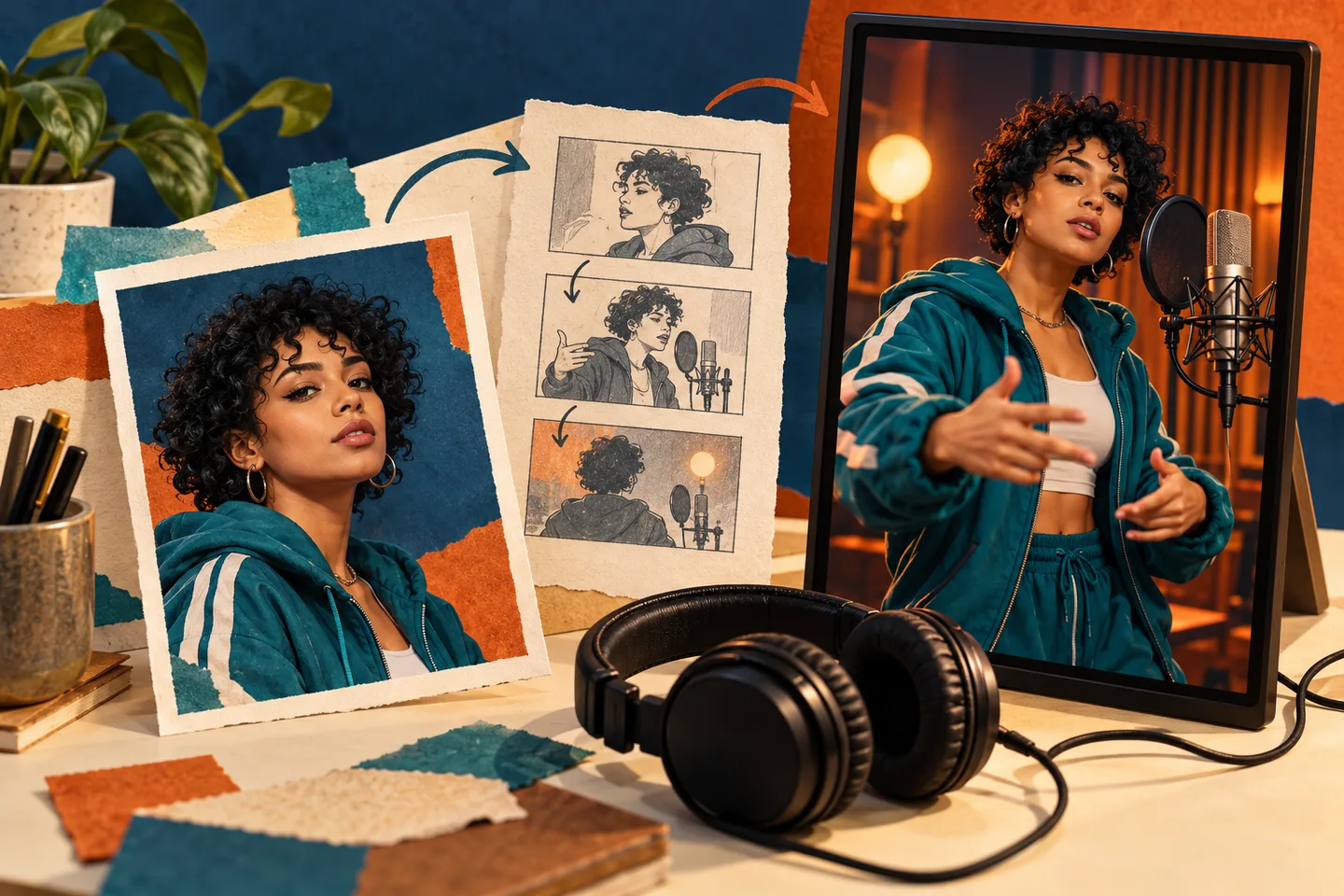
AI-generated workflow illustration. The person and scene are fictional; this is not a RapGen screenshot or a generated-video test result.
Write one scene with one main movement
For the rooftop example, the brief could be:
Use the uploaded portrait as the visual reference for one adult performer. Show a waist-up rap performance on a rooftop at sunset. Keep the face unobstructed and the camera at eye level. Use a steady frame, gentle head movement, and one restrained hand gesture below the chin. Keep the warm lighting and skyline consistent throughout the shot. End on a calm, confident pose. Do not add written text.
The portrait identifies the intended performer. The rest describes a shot you can inspect. “Waist-up,” “eye level,” and “gesture below the chin” give you concrete framing choices, while a steady camera makes facial changes easier to notice.
These instructions express a preference. They cannot guarantee identity preservation, exact choreography, or word-level synchronization. If exact lyrics matter, verify the audio path before generating rather than assuming quoted lines will be performed correctly.
Select settings and budget for a second attempt
In the generator, add your photo, enter the brief, and review the settings available for the selected mode. Choose a supported aspect ratio and a short duration suitable for the idea. Select portrait orientation for a vertical composition only when that option is offered.
Check the displayed credit total after changing duration, resolution, references, or the number of outputs. A balance is useful only when it covers the selected task. RapGen's published new-account allowance is 16 starter credits, which may not cover every video option.
For planning, let C be the displayed cost of one output. One initial attempt plus one completed revision costs 2 × C, assuming the settings and cost stay the same. If the displayed cost is 20 credits, that example budget is 40 credits. Twenty is an illustration, not a quoted RapGen rate.
Read the RapGen plan information where available and the cost shown in the editor. Do not treat a subscription's total credits as a promise of a fixed number of finished clips.
Review the result in three passes
First, watch at normal speed with sound. Does it read as the performance you intended? Listen for unexpected speech, missing audio, or a mood that conflicts with the scene.
Second, inspect the face during movement. Check the opening, the strongest gesture, and the final pose. Look for changes in the eyes, jaw, hairline, or clothing.
Third, check the intended deliverable. A personal visual joke might tolerate loose mouth movement. A release teaser built around specific lyrics may need a different audio-driven workflow. Judge against the acceptance rule you wrote before spending credits.
If you retry, change one variable: a clearer photo, quieter hand movement, or a simpler camera direction. Keep a note of the setting and reason. A completed version you dislike is still a completed generation; an automatically returned credit for a confirmed failed task is a separate situation.
Finish the edit before sharing
Download the version you prefer and review the downloaded file. Add approved captions in an editor when exact text matters. Listen again after adding or replacing music: a different soundtrack does not automatically make the mouth follow its words.
For a first attempt, keep the goal small: one person, one scene, one readable performance moment. Open the RapGen generator, prepare that shot, and judge the result before expanding into a longer edit.
Source check: October 24, 2026. RapGen workflow and allowance were checked against the live homepage, the published product guide, and the current local generator implementation. No paid generation benchmark was performed.