

AI Rap Video Lip Sync: Diagnose Problems Before Retrying
When an AI rap video's mouth movements do not match, check what is driving the performance before changing the prompt. A scene description, an audio reference, and an existing recording preserved on an editing timeline are different inputs. They do not carry the same promise of word-level control.
RapGen lets you explore short performance scenes from a photo and description. Some modes expose audio references, but that alone does not guarantee your original recording will remain unchanged. If the brief requires exact bars, establish that requirement before another render.
This guide helps separate four problems: a fixed sound delay, an unsuitable source photo, unstable movement, and a workflow that does not provide the audio control you need. It does not claim a measured improvement rate.
Check the downloaded file before blaming generation
Play the downloaded video as well as the browser preview. If the mismatch appears only in one player, investigate that playback path first. If you have edited the clip, return to the original export and compare the same moment.
Make a short review note: “Every mouth movement appears late by about the same amount,” or “The opening looks close, but the fast line loses individual syllables.” These are more useful than “bad sync.”
A consistent offset may be worth testing with a small audio shift in an editor. That adjustment cannot repair mouth shapes that never matched the words. If different lines drift by different amounts, moving the entire audio track is unlikely to address the whole problem.
Confirm the audio job you asked the tool to do
| Workflow | What it is intended to control | What remains to verify |
|---|---|---|
| Photo plus scene description | Performer, setting, gestures, and overall performance direction | Actual sound, words, and mouth timing in the output |
| A mode with an audio reference | Sound or performance guidance, according to that mode | Whether it retains the source recording and aligns the intended words |
| A dedicated audio-driven avatar workflow | Facial performance driven by supplied speech or audio | Suitability for rap, overlapping vocals, and the particular portrait |
| Edited lyric video | Exact audio track and timed on-screen words | Caption accuracy and readability; facial animation is optional |
For a concrete audio-driven example, Hedra's lip-sync page describes supplying a face and an audio file so the recording drives the facial performance. That input contract is more specific than a general audio-reference option; it is still worth testing your actual rap excerpt.
If preserving your recording is essential, run a short representative excerpt first. Include a clear phrase and a denser phrase, then compare the result with the original. Do not use a tool's support for “audio” as a substitute for that check.
If you follow an older tutorial, verify that its tool still exists. Runway's current deprecation table lists its standalone Lip Sync tool as deprecated on May 27, 2026 and points to Act Two as an alternative. That is a warning about outdated instructions, not a claim that Act Two accepts every old workflow unchanged.
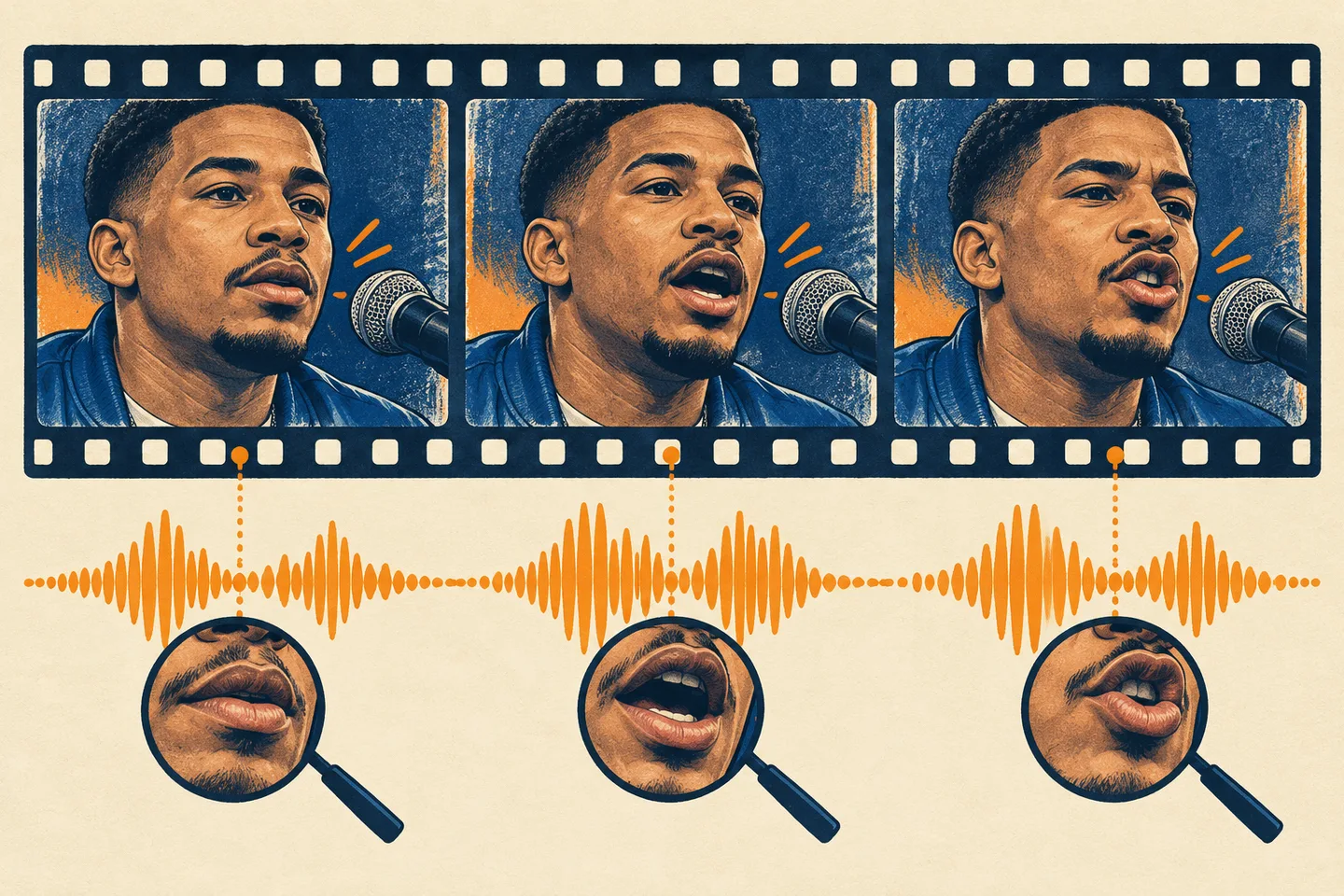
AI-generated review illustration. The frames do not show a real synchronization test or a before-and-after result.
Change the photo when the mouth is difficult to read
Inspect the reference at the size you will actually upload. Can you distinguish the lips? Does a deep shadow erase one side of the face? Is a microphone or hand covering the jaw?
Try a clearer, evenly lit portrait with a relaxed expression before writing a longer corrective prompt. HeyGen's photo-avatar guide identifies obscured lips and a very small character in the image as problematic for its own system. These are useful visibility checks, not evidence that any one crop guarantees success in RapGen.
An overly broad mouth movement is a different symptom. HeyGen's avatar troubleshooting FAQ suggests trying a subtler expression for its photo looks. Its model switches and expression controls are HeyGen-specific; do not look for those exact controls in RapGen.
Reduce motion before adding more instructions
If the mouth disappears behind a hand or turns away from the camera, simplify the shot. Try a steady eye-level view with small gestures below the chin. Remove rapid camera movement and repeated head turns from the brief.
Compare the next output with the earlier one at the same moments: opening phrase, strongest gesture, and final line. Note whether visibility improved even if synchronization did not. A clearer face makes diagnosis easier; it does not transform a scene generator into an exact audio-sync editor.
For a long performance, consider generating separate visual inserts and assembling an edit. Avoid making every shot a facial close-up if only a few moments require a visible vocal performance. This is an editing choice, not a workaround that creates missing mouth shapes.
Treat dense delivery as a separate test
Fast lines, overlapping voices, and unclear consonants are useful stress cases when evaluating an audio-driven workflow. Compare one clean solo phrase with the demanding passage instead of assuming the photo is responsible for everything.
If you control the recording, prepare a short test with clear solo vocals and natural breathing space. Keep the original master untouched. If you need its exact timing, do not slow or rewrite it merely to make a different result look acceptable; choose a workflow suited to that requirement.
For a visual birthday joke where exact words are optional, a simpler performance request may be enough. For a release asset, the acceptance rule should include the actual lyric timing. Decide which job you have before spending on revisions.
Make the next paid attempt answer one question
Record the failure, one change, and the pass condition:
- Failure: the hand crosses the lips. Change: lower the gesture. Pass: lips remain visible throughout.
- Failure: a constant delay in an edited export. Change: compare with the original file and test one timeline offset. Pass: alignment improves consistently across the clip.
- Failure: words change despite supplying a recording. Change: verify the mode's audio contract. Pass: an excerpt retains the required recording and timing.
Check the current credit estimate before generating again. A confirmed failed task and a completed result that misses your creative goal are different billing situations. Keep the task details if you need help from support.
If your main goal is a visual performance concept, return to the RapGen generator with a simpler shot. If your main goal is exact performance of your song, validate that audio path first. The useful fix is the one that addresses the failed requirement.
Sources checked October 24, 2026. RapGen claims were checked against local content and implementation. No paid lip-sync tests or cross-tool quality benchmarks were performed.